CapCut is an amazing video editor, but learning how to fix CapCut no internet connection issues is essential when system glitches pause your project. You see full Wi-Fi bars on your screen, yet the editor shows a network error.
This guide helps you fix this problem quickly. You will regain full access to trending effects, body visual effects, and cloud templates in just a few minutes.
Why Does CapCut Say No Internet Connection When Online?
The application requires direct communication with online servers to load resources. Understanding how to fix CapCut no internet connection bugs starts with knowing the root causes like regional blocks, broken application cache, and system restrictions.
How to Fix CapCut No Internet Connection Bug Quickly
You can fix this bug on Android, iOS, or PC using these verified troubleshooting methods.
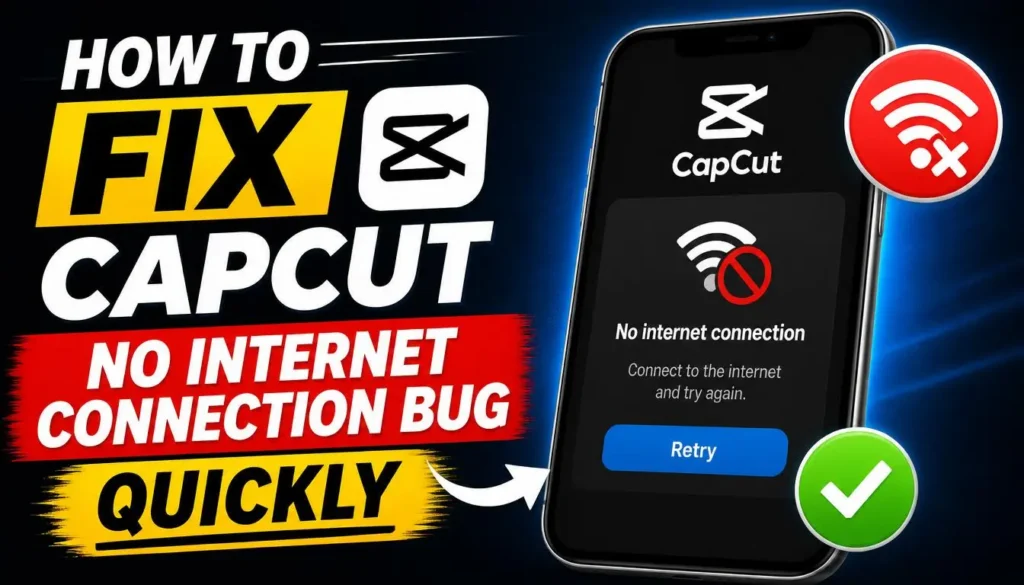
1. Connect to a Secure Virtual Private Network (VPN)
Regional network restrictions cause this issue for most creators. Connecting through a virtual private network solves the problem instantly.
- Close CapCut completely on your mobile device or computer.
- Open your trusted VPN software application.
- Select a reliable server location in the United States, United Kingdom, or Singapore.
- Connect the VPN and wait for a stable connection.
- Relaunch the app to access all online features.
2. Clear Corrupted App Cache and Temporary Data
Corrupted cache files prevent proper internet communication. Clearing this data freshens up your application status.
- Open the Settings menu on your Android or PC.
- Select Apps, then click on CapCut.
- Tap Storage & Cache.
- Select Clear Cache to remove temporary files safely.
- Open the app internal settings and clear the cache inside the app too.
3. Change Custom Private DNS Configuration
Changing your device DNS settings helps bypass local ISP routing blocks effectively.
- Open your Android system Settings menu.
- Search for Private DNS inside network settings.
- Select Private DNS Provider Hostname.
- Enter
dns.googleorone.one.one.oneinto the field. - Save changes, restart your device, and test the app network.
4. Update the App to the Latest Version
Outdated builds fail to communicate with modern cloud servers correctly.
- Visit the Google Play Store or Apple App Store.
- Search for CapCut.
- Tap Update to install the newest bug-fix build.
- Desktop users should check internal settings to upgrade the executable file.
5. Disable System Firewall or Antivirus Shield (PC Users)
Strict firewall rules can stop desktop software traffic entirely.
- Open Windows Security settings on your computer.
- Click on Firewall & Network Protection.
- Select Allow an app through firewall.
- Find the main software executable file and check both Private and Public boxes.
- Save the configuration and restart the program.
Frequently Asked Questions (FAQs)
Conclusion
Knowing how to fix CapCut no internet connection errors requires checking regional settings and app cache. Always start by using a secure VPN server. Clear app cache regularly to ensure smooth playback. Update software builds continuously to prevent future errors. Following these steps keeps your editing setup running smoothly every time.