Video editing can feel tough, but smart tools make it effortless. Learning how to use a CapCut multi-layer overlay helps creators produce stunning visual effects with ease. Therefore, you can quickly turn simple smartphone clips into cinema-grade scenes.
In this full guide, you will master CapCut multi-layer overlay techniques and green screen tricks. Furthermore, we will explore advanced editing tips to boost your video quality for YouTube, TikTok, and Instagram Reels.
What is a CapCut Multi-Layer Overlay?
The overlay feature allows you to stack multiple videos or images on top of your main timeline. Consequently, you can combine backgrounds, add light leaks, or insert PIP (Picture-in-Picture) reactions effortlessly.

Using a CapCut multi-layer overlay setup gives your content a dynamic look. In addition, it helps keep your viewers engaged throughout the entire video.
- Main Track: Your primary background or main narrative video clip.
- Overlay Track: Secondary clips, graphics, stickers, or text overlays placed above the main track.
How to Set Up a CapCut Multi-Layer Overlay Step-by-Step
Creating multi-layer edits requires structured steps. Follow this process to organize your timeline cleanly.
- Open CapCut and Import: Start a new project and select your primary background clip.
- Add Your Overlay: Tap the Overlay icon on the lower toolbar, then choose Add Overlay. Select your video or photo.
- Adjust Scaling and Position: Pinch the screen to resize the overlay clip. Place it precisely where you need it.
- Add Secondary Overlays: Repeat the process to stack additional elements like texture overlays, light leaks, or extra video layers.
Understanding Green Screen (Chroma Key) Techniques
Green screen technology replaces a solid color background with any custom image or video. CapCut provides two built-in methods for this purpose: Chroma Key and Auto Cutout.
Method 1: The Classic Chroma Key Setup
Chroma Key targets a specific color shade and removes it instantly.
- Place your green screen clip on the Overlay Track.
- Select the overlay clip and scroll the bottom toolbar to Cutout.
- Choose Chroma Key and drag the color picker circle over the green background.
- Increase the Intensity slider until the green background disappears completely.
- Adjust the Shadow slider to clean up any rough edges around your subject.
Method 2: Smart AI Auto Cutout
If your video lacks a green screen, CapCut’s AI can still remove background elements automatically.
- Select your overlay video on the timeline.
- Tap Cutout and choose Auto Cutout.
- Wait a few seconds for the AI engine to isolate your subject cleanly.
Pro Tricks for Flawless Green Screen Blending
Simply removing the background is not enough. You must blend the overlay subject naturally into the new background.
1. Match Color Profiles and Lighting
A bright subject on a dark background looks fake. Use the Adjust tool to align brightness, contrast, and saturation between both layers.
2. Apply Soft Shadows
Flat cutouts look unnatural. Add a subtle shadow using the Effects tab or adjust shadow levels inside the Chroma Key menu to add real-world depth.
3. Use Blend Modes Wisely
CapCut offers several blending modes like Filter, Overlay, Dodge, and Screen. Applying Filter or Screen removes black backgrounds instantly without using Chroma Key.
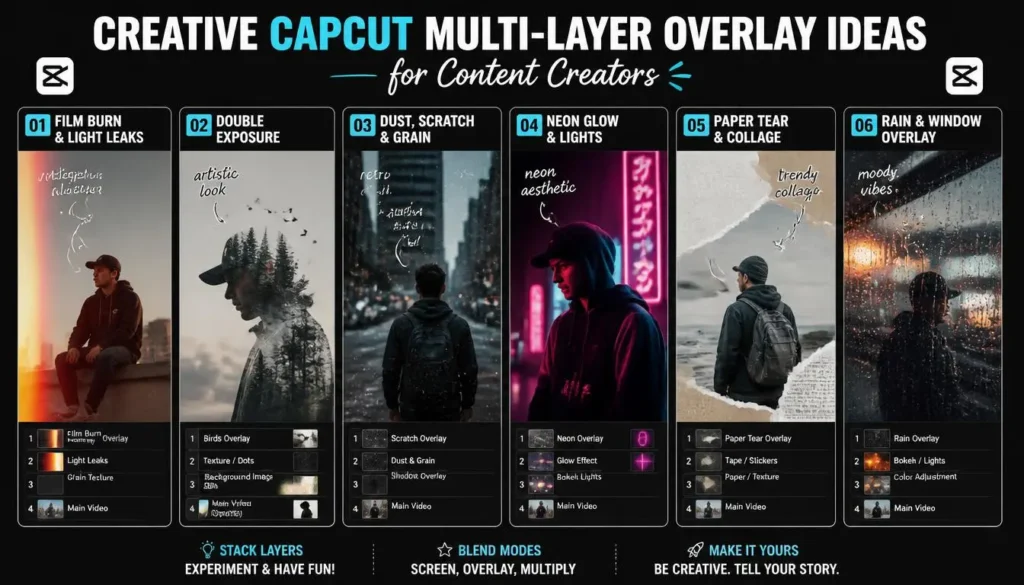
Creative CapCut Multi-Layer Overlay Ideas for Content Creators
You can mix multiple editing features to produce high-performing social media videos.
- Double Exposure Effect: Blend a portrait overlay onto a nature landscape background using the Overlay blend mode.
- Clone Yourself: Record two separate takes with a static camera. Place one clip on the main track and the second on the overlay track. Apply a Mask to split the screen seamlessly.
- Glitch and Texture Transitions: Layer noise or VHS overlays on top of your transitions to build an aesthetic vibe.
Key Takeaways for Fast Video Processing
- Keep your background clean and evenly lit for the best Chroma Key results.
- Limit your active video overlays to 4–5 tracks to prevent lagging on older smartphones.
- Always match the color temperature between your main track and overlay clips.
Frequently Asked Questions (FAQs)
Conclusion
Mastering a CapCut multi-layer overlay and green screen tricks unlocks limitless creative possibilities. By combining proper lighting adjustments, smart blend modes, and clean Chroma Key settings, you can produce professional-quality videos right from your smartphone. Start experimenting with these layering strategies today to make your content stand out on every feed.