
Creating video content requires instant audience engagement. Therefore, every creator needs high-impact opening titles and smooth closing credits. Mastering a CapCut cinematic text animation grabs immediate viewer attention. Consequently, your watch time increases rapidly.
CapCut provides powerful keyframe tools and typography presets. Moreover, applying pro editing techniques costs absolutely nothing. This complete guide reveals simple text tricks for mobile and desktop platforms.
Why Cinematic Intro and Outro Text Animations Matter
First impressions shape viewer retention instantly. Specifically, the initial three seconds determine whether viewers stay or scroll away. Elegant text reveals immediately signal premium production value. Furthermore, polished motion design establishes strong brand authority.
Outros perform an equally vital role. For example, a stylized call-to-action keeps viewers connected to your channel. Similarly, smooth end cards boost subscriber conversions effortlessly. Masterful typography connects the visual story together seamlessly.
Essential CapCut Text Tools for Pro Editors
Keyframe Control and Motion Curves
Keyframes allow complete manual control over position, scale, and opacity. Furthermore, custom speed curves eliminate stiff linear motion. Thus, every CapCut cinematic text animation flows with natural weight and momentum.
Text Masks and Blend Modes
Masking lets titles hide behind physical landscape elements or subjects. Additionally, blending options like Multiply or Overlay melt text directly into scene lighting. Therefore, your titles look organically integrated.
Sound Effect Layering
Visual movement requires sound design for maximum impact. Consequently, pairing light swooshes or deep cinematic risers with text entrances amplifies realism. Every title transition feels significantly more powerful.
Step-By-Step Hacks for Cinematic Intro Text Animations
Hack 1: The Hollywood Film Title Zoom Reveal
- Type your main title using a clean serif or bold sans-serif font like Montserrat or Cinzel.
- Set scale to 300% on the first keyframe at frame zero.
- Advance the playhead 1.5 seconds forward and drop scale down to 100%.
- Open the speed graph editor and apply an “Ease Out” curve for smooth deceleration.
- Add a subtle Gaussian Blur effect to the background video clip to accentuate depth.
Hack 2: Behind-The-Subject Text Masking
- Duplicate your main video background clip onto an upper track.
- Select the top video layer and apply the Auto Cutout or Remove Background feature.
- Position your text layer in between the original video and the cutout layer.
- Animate text position moving horizontally from behind your subject.
- Apply a light drop shadow to separate the title from the background.
Professional Outro Text Animations for Maximum Retention
Hack 3: Cinematic Film Roll Outro Credits
- Create a single vertical text box containing all project credits.
- Position the entire text block below the visible screen frame at the start.
- Add a position keyframe at the beginning of the clip.
- Move to the end of the timeline and drag the text block upward past the top edge.
- Add a soft vignette filter over the background clip to keep text highly legible.
Hack 4: The Glowing Neon Glitch Fade Out
- Apply a neon text style preset with high glow intensity.
- Navigate to the Out Animation tab and select Typewriter or Fade Out.
- Overlay a subtle Chromatic Aberration effect over the final 10 frames.
- Layer a vinyl crackle or analog static sound effect underneath the text layer.
Pro Typography and Layout Best Practices
| Styling Element | Cinematic Recommendation | Why It Works |
| Font Choice | Bebas Neue, Montserrat, Cinzel | Provides clean lines and strong legibility across mobile screens. |
| Tracking / Letter Spacing | +15 to +30 | Expanded spacing creates a premium, high-budget aesthetic instantly. |
| Color Palette | Matte White, Warm Gold, Soft Cyan | High contrast prevents titles from getting lost in colorful backgrounds. |
| Animation Duration | 0.8s to 1.5s entrance | Fast reveals prevent pacing slowdowns while maintaining high visual polish. |
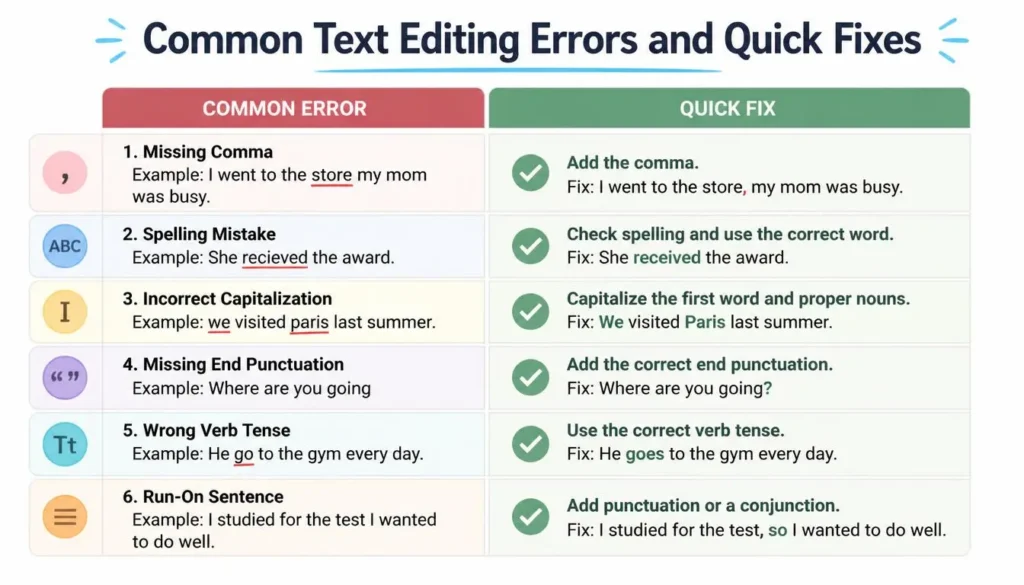
Common Text Editing Errors and Quick Fixes
Oversized Fonts Blocking Action
Massive titles distract from underlying video footage. Instead, scale text down slightly and increase letter spacing. This maintains impact while preserving visual clarity.
Clashing Font Colors
Bright primary colors often cheapen overall video production. Therefore, choose desaturated whites, creams, or metallic tones. These subtle hues match natural cinematic color grades effortlessly.
Frequently Asked Questions (FAQs)
Conclusion
Learning to design a custom CapCut cinematic text animation elevates video quality instantly. By implementing keyframe motion, text masking, sound layering, and wide letter spacing, your titles achieve a professional film look. Practice these workflows on your next edit to boost audience retention immediately.