
Video editing used to require hours of manual work and complex desktop software. Today, artificial intelligence has completely transformed the content creation landscape. CapCut has emerged as one of the most powerful tools for creators worldwide.
Whether you are making TikTok Reels, YouTube Shorts, or marketing promos, CapCut’s artificial intelligence tools simplify every step. In this comprehensive CapCut AI features guide, you will discover how to use these smart editing tools to create viral, professional-grade videos effortlessly.
What Are CapCut AI Features?
CapCut AI features are built-in automated tools that handle complex video editing tasks with a single click. These smart algorithms analyze your footage, speech, and images in real time. Consequently, they eliminate hours of tedious manual keyframing, cutting, and color grading.
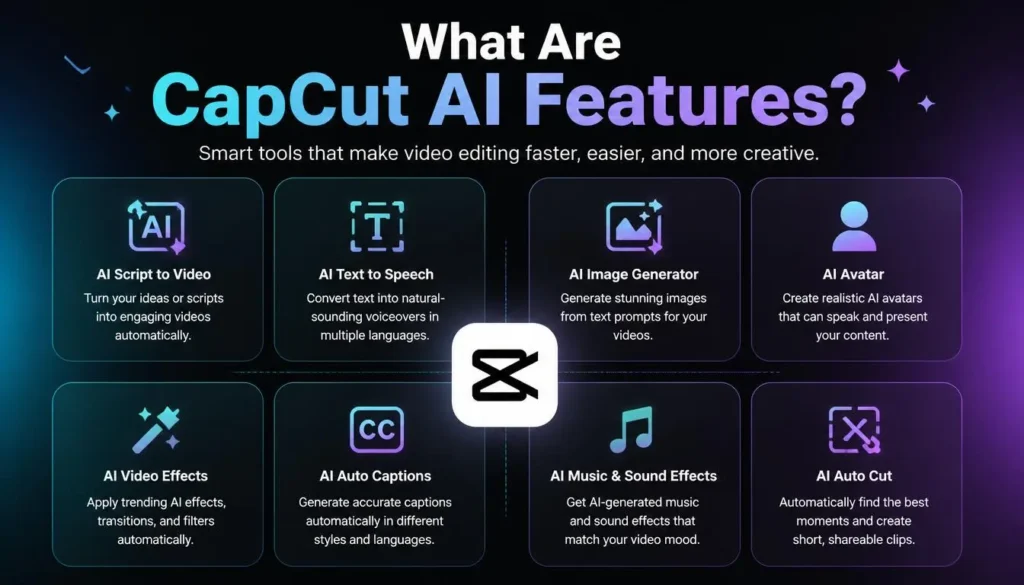
Instead of spending half your day masking objects or adding subtitles frame-by-frame, CapCut does it instantly. The app uses advanced machine learning models to detect human faces, isolate speech, and generate new visual elements from simple text prompts.
Key CapCut AI Features Every Creator Needs
CapCut offers an extensive library of automated features across mobile, desktop, and web platforms. Below is a detailed breakdown of the top artificial intelligence capabilities you should be using today.
1. Auto Captions and Subtitle Generator
Captions are essential because over 80% of viewers watch social media videos on mute. CapCut’s Auto Captions feature uses high-accuracy speech recognition to automatically transcribe spoken words into stylish subtitles within seconds.
Furthermore, the auto-caption generator supports dozens of global languages. You can customize fonts, apply word-by-word animation effects, and auto-translate subtitles to reach an international audience without leaving the editor.
2. AI Script to Video
If you struggle with writer’s block or need to pump out high volumes of content, the Script to Video tool is a total game changer. Simply type your video concept or topic into the AI writer.
First, the built-in AI model writes a complete structured video script. Next, it pairs that script with relevant B-roll footage, background music, transitions, and voiceovers automatically. You receive a polished video draft in under two minutes.
3. AI Background Removal
In the past, removing a background required shooting in front of an expensive green screen. With CapCut’s AI Video Background Remover, you can erase any unwanted background with a single tap.
The algorithm precisely separates human subjects from complex environments. Therefore, you can easily insert custom backdrop images, aesthetic patterns, or full cinematic video overlays behind your subject.
4. AI Voice Generator and Text-to-Speech
Recording a voiceover requires a quiet room and a quality microphone. However, CapCut’s Text-to-Speech feature lets you convert any written text into natural-sounding speech instantly.
You can choose from a wide variety of voice styles, ranging from energetic conversational tones to professional narrator voices. Additionally, the app offers AI Voice Changers and Voice Enhancers to clean up background noise from your original audio clips.
5. AI Video Upscaler and Quality Enhancer
Blurry or low-resolution footage can instantly ruin a good video. CapCut addresses this issue with its AI Video Upscaler tool.
This feature intelligently reconstructs missing pixels to sharpen blurry videos. As a result, low-grade 720p footage transforms into crisp, high-definition 1080p or 4K videos suitable for large screens.
6. AI Avatars and Presenters
For creators who prefer to remain camera-shy, CapCut provides hyper-realistic digital AI Avatars. These virtual presenters speak your script with realistic lip-syncing and facial expressions.
Consequently, e-commerce stores and educational channels can generate product demos and explainer videos effortlessly without hiring actors or filming in studio setups.
CapCut AI Features Overview Table
| AI Feature | Primary Function | Best Used For | Platform Availability |
| Auto Captions | Transcribes spoken voice into dynamic subtitles | TikTok Reels, Shorts, Tutorials | Mobile, Desktop, Web |
| Script to Video | Generates full edits from text prompts | Faceless YouTube & Marketing | Desktop, Web |
| Background Remover | Erases backgrounds without green screens | Vlogs, Product Showcases | Mobile, Desktop, Web |
| Text-to-Speech | Converts typed text into natural voiceovers | Narrations, Memes, Ads | Mobile, Desktop, Web |
| AI Video Upscaler | Enhances low-resolution video clarity | Restoring old footage, 4K exports | Mobile, Desktop, Web |
| AI Avatars | Creates virtual talking presenters | Educational & Marketing videos | Desktop, Web |
How to Use CapCut AI Features Step-by-Step
Using these smart features in your editing workflow is quick and easy. Follow this simple guide to start editing smarter today.
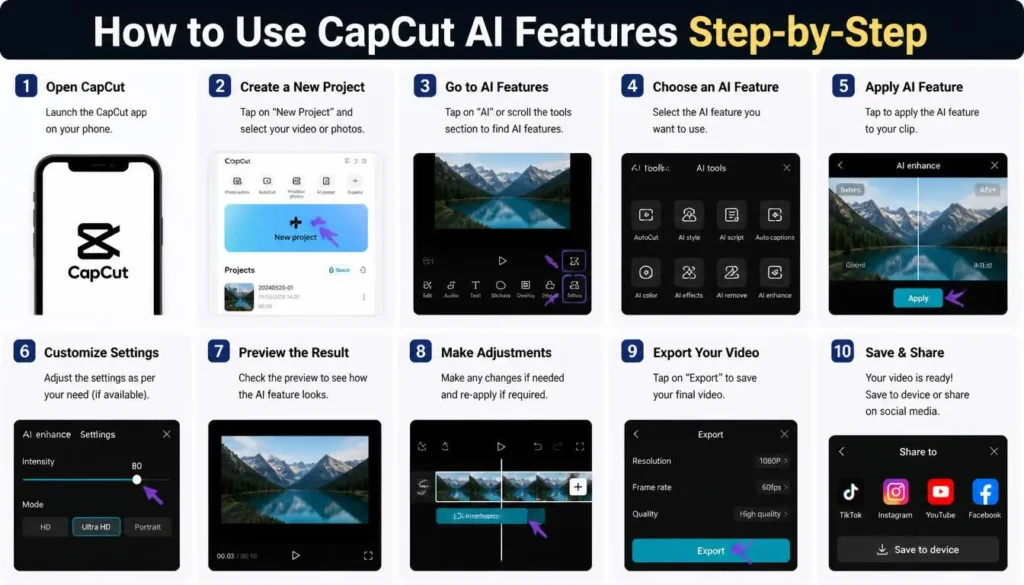
1.Download and Open CapCut:Available on Mobile, Desktop, and Browser.
First, open the CapCut application on your device or access the online web editor through your desktop browser. Log in to your free account to unlock your cloud storage.
2.Import Your Media or Prompt:Select clips or generate from scratch.
Click on New Project to upload your raw footage. Alternatively, select an automated tool such as Script to Video if you want to generate a video entirely from text.
3.Apply Your Desired AI Tool:One-click automatic enhancement.
Navigate to the bottom editing bar on mobile or the top panel on desktop. Choose tools like Auto Captions, Background Removal, or AI Enhancer to process your footage automatically.
4.Customize and Fine-Tune:Maintain creative control over output.
Review the automated output. Adjust caption fonts, correct any mispronounced words, tweak background colors, and add background music from CapCut’s audio library.
5.Export in High Definition:Watermark-free export up to 4K resolution.
Finally, click the Export button. Set your target resolution to 1080p or 4K at 60fps and share directly to TikTok or YouTube with a single click.
Best Strategies for Fast Ranking with CapCut AI Videos
Creating great videos is only half the battle. If you want your content to rank high on YouTube Shorts, Instagram Reels, and TikTok search, apply these battle-tested optimization techniques:
- Optimize First 3 Seconds: Social media algorithms prioritize viewer retention. Use eye-catching AI captions and dynamic visual effects in the opening seconds to hook scrolling users instantly.
- Always Use Auto Captions: Because many users watch videos quietly, adding captions increases average view duration significantly.
- Export in Native Aspect Ratios: Use CapCut’s Auto Reframe tool to quickly adjust your video layout to 9:16 for vertical platforms or 16:9 for traditional YouTube videos.
- Keep Audio Balanced: Combine AI voiceovers with low-volume trending background music to keep your narration clear and engaging.
Frequently Asked Questions (FAQs)
1. Are CapCut AI features free to use?
Yes, CapCut offers most of its core AI features, such as Auto Captions and Background Removal, on the free tier. However, premium tools like advanced Voice Cloning or 4K AI Upscaling may require a CapCut Pro subscription.
2. Is CapCut available on PC and Web?
Yes, CapCut is available as a mobile app for Android and iOS, a dedicated desktop software for Windows and Mac, and an online web editor.
3. How accurate is CapCut’s Auto Caption tool?
CapCut’s auto-transcription engine is remarkably accurate for clear audio spoken in common languages. However, it is always wise to double-check spelling before publishing.
4. Can CapCut AI generate videos from text alone?
Yes, the Script to Video tool allows you to input a simple text topic. The AI writes a full script and generates matching visuals and voiceovers automatically.
5. Does CapCut add a watermark to AI videos?
CapCut allows you to export videos without a watermark on free accounts, making it ideal for content creators and marketers.
6. Can I remove video backgrounds without a green screen in CapCut?
Yes, the AI Background Removal tool uses smart cutout algorithms to isolate subjects without needing a green screen.
7. How does the AI Video Upscaler work?
The upscaler analyzes low-resolution video frames and uses deep learning models to sharpen edges and detail, boosting resolution up to 4K.
8. Can I translate my video subtitles into other languages?
Yes, CapCut includes an auto-translation feature within the caption editor. You can translate spoken voice into multiple languages instantly.
9. What is the CapCut AI Presenter feature?
AI Presenters are customizable digital avatars that read your scripts aloud with realistic facial movements, ideal for faceless channels.
10. How do I fix CapCut AI tools lag on low-end phones?
Clear your app cache inside CapCut settings, ensure your device has free storage, and lower timeline preview resolution while editing heavy AI effects.
Conclusion
CapCut has revolutionized video creation by putting professional-grade artificial intelligence tools into the hands of everyday creators. From automated subtitles and background removal to complete script-to-video generation, these features save time while dramatically boosting video quality. By mastering CapCut AI features, you can streamline your workflow, produce consistent content, and rank higher across social media platforms. Start exploring these smart tools today to take your video editing skills to the next level.