
Choosing the ideal video editing environment directly impacts your daily creative workflow. ByteDance created CapCut to empower digital content creators across all modern hardware devices. When evaluating CapCut Mobile vs. CapCut PC Pro, users frequently struggle to decide which platform fits their needs best. Both software solutions offer impressive feature sets, yet they serve distinct editing demands.
CapCut Mobile focuses on rapid social media publishing directly from portable smartphones. In contrast, CapCut PC Pro unlocks hardware-accelerated processing, multi-track timelines, and advanced post-production tools.
This comprehensive CapCut Mobile vs. CapCut PC Pro comparison analyzes both versions across interface layout, artificial intelligence features, system performance, and cost efficiency. Read on to discover which platform matches your video production strategy.
What is CapCut Mobile?
CapCut Mobile is a touch-optimized editing application designed specifically for Android and iOS smartphones. It lets digital creators edit, polish, and export vertical short-form content in minutes. The software integrates directly with short-form video apps, making trend-driven content creation effortless.

Mobile Touch Controls & Speed
The application uses intuitive gesture controls for trimming, splitting, and scaling video clips. Editors pinch to zoom timelines or swipe to apply filter adjustments instantly. This simple interface cuts down startup friction for new content creators.
Built-in Social Media Trends & Templates
CapCut Mobile receives the latest viral template updates first. Creators easily sync trending audio tracks with one-tap visual transitions. This capability gives short-form creators a competitive edge on social platforms.
Instant On-the-Go Video Publishing
Mobile creators shoot, edit, and publish content without sitting at a desktop workspace. The app exports directly to connected social media profiles, saving valuable time during live events or daily vlogging.
What is CapCut PC Pro?
CapCut PC Pro is a dedicated desktop application engineered for Windows and macOS systems. It leverages your computer’s local hardware—including graphics processors (GPUs) and system RAM—to manage heavy workloads.
Full-Scale Multi-Track Timeline
The desktop editor features a wide multi-track workspace. Creators manage dozens of video, audio, text, and overlay tracks simultaneously without visual clutter. Precise track locking prevents accidental clip movement during complex project setups.
Hardware Acceleration & GPU Rendering
CapCut PC Pro utilizes dedicated graphics cards to preview complex video effects smoothly. It handles high-bitrate 4K footage at 60 frames per second without severe preview lag.
Custom Keyboard Shortcuts & Precision Editing
Desktop editors rely on customized hotkeys to split clips, adjust keyframes, and scrub timelines quickly. Mouse and keyboard input allows precise frame-by-frame cuts that touchscreens cannot replicate.
CapCut Mobile vs. CapCut PC Pro: User Interface & Timeline Control
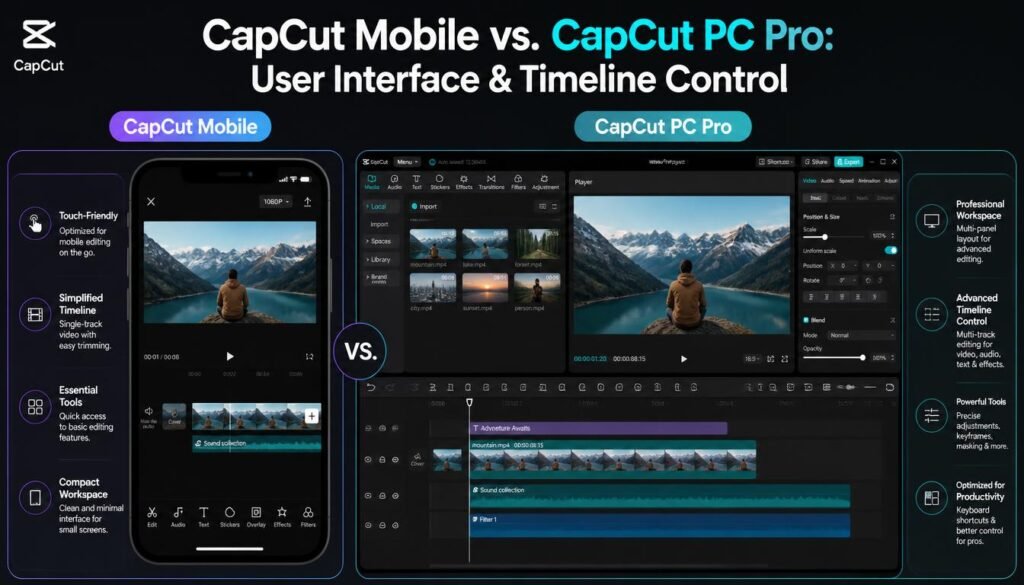
The editing environment dictates how efficiently you turn raw clips into polished videos. Examining CapCut Mobile vs. CapCut PC Pro interface differences reveals distinct productivity advantages for each screen size.
Smartphone Touch Interface vs. Desktop Monitor Layout
Mobile editing requires constant menu navigation on smaller screens. Users toggle between sub-menus to adjust text, effects, and audio layers. Desktop systems display media bins, preview players, effect panels, and multi-track timelines simultaneously.
Keyframe Precision & Motion Graphics Control
While both platforms support keyframe animations, PC Pro offers superior spatial control. Editors manually set precise numeric values for position, rotation, scale, and opacity across time markers.
Dual Monitor Workflows & Workspace Customization
CapCut PC Pro allows editors to detach preview panels and extend workspaces across secondary displays. This setup gives long-form video creators a dedicated space for color grading and timeline management.
CapCut Mobile vs. CapCut PC Pro AI Features & Processing Power
ByteDance continues to integrate artificial intelligence across both platforms. However, testing CapCut Mobile vs. CapCut PC Pro shows hardware constraints change how these tools process data on mobile versus desktop devices.
Auto Captions & Speech-to-Text Accuracy
Both platforms generate automatic speech-to-text captions across multiple languages. The desktop version processes longer audio files faster by using local system resources.
AI Background Removal & Smart Cutouts
Removing video backgrounds without a green screen demands heavy processing power. CapCut PC Pro isolates subjects accurately using local processing, while mobile devices rely on compressed previews to prevent thermal throttling.
AI Voice Cloning & Text-to-Speech Libraries
Both ecosystems offer voice synthesis features. PC Pro lets creators download voice models locally, reducing rendering delays when working offline.
Performance, Rendering Speed, and Export Settings
Performance determines whether your editing workflow stays smooth or suffers constant interruptions. Hardware resources play a crucial role during final rendering.
| Performance Factor | CapCut Mobile | CapCut PC Pro |
| Max Render Resolution | Up to 4K resolution | Native 4K with custom bitrates |
| Frame Rate Control | 24FPS, 30FPS, 60FPS | Custom FPS up to high refresh rates |
| Hardware Utilization | Mobile CPU & Battery power | Dedicated GPU Acceleration & RAM |
| Offline Performance | Limited local AI tools | Full offline editing capability |
| Project File Recovery | Cloud backup & Local cache | Local project auto-saves & Backups |
Mobile Battery & Heat Management
Rendering long 4K projects on smartphones consumes battery power quickly and generates high internal heat. CapCut PC Pro runs on active cooling desktop systems, allowing uninterrupted rendering for long-form content.
Color Bitrates & Codec Options
CapCut PC Pro provides granular export controls. Editors select HEVC or H.264 codecs, adjust bitrates, and select custom audio export formats like WAV or FLAC.
Price Structure & Pro Subscription Plans
Understanding subscription licensing helps creators select the best value proposition.
Free Tier Capabilities
Both versions offer capable free tools. Free users can trim footage, add transitions, generate captions, and export high-definition videos easily.
CapCut Pro Subscription Value
Upgrading to CapCut Pro unlocks premium AI tools, advanced cloud storage, dynamic text animations, and cinematic visual effects. A single Pro account synchronizes across mobile and desktop devices smoothly.
Which Version Should You Use?
Select your preferred platform based on your specific video production needs.
Choose CapCut Mobile If:
- You publish quick daily vertical videos on TikTok, Shorts, or Instagram Reels.
- You prefer touch-screen controls and automated trending templates.
- You record, edit, and upload footage directly from your smartphone while traveling.
Choose CapCut PC Pro If:
- You produce long-form horizontal content for YouTube or client video projects.
- You require multi-track timeline precision, keyboard shortcuts, and custom export bitrates.
- You work with high-resolution 4K video footage using dedicated computer hardware.
Best Ranking Strategies for Video Content Creators
Maximizing your video reach requires combining strong editing with clever SEO strategy:
- Optimize File Metadata: Name exported video files with relevant target keywords before uploading them to social platforms.
- Hook Viewers Fast: Use auto-captions and quick visual transitions within the first 3 seconds to keep retention high.
- Repurpose Content Across Platforms: Edit 16:9 horizontal videos on PC, then use auto-reframe features to export 9:16 vertical clips for mobile channels.
- Maintain Consistent Posting Schedules: Use cloud sync features to organize drafts on mobile and render final cuts on PC without missing deadlines.
Frequently Asked Questions (FAQs)
Conclusion
In the debate between CapCut Mobile vs. CapCut PC Pro, both platforms prove to be powerful video editing tools. CapCut Mobile remains the undisputed leader for fast, trend-focused, on-the-go short clips. Meanwhile, CapCut PC Pro provides unmatched multi-track control, GPU acceleration, and precision editing for long-form creators. Using both platforms via cloud synchronization provides the ultimate editing experience. Evaluate your current video requirements and hardware setup to choose the best option for your creative workflow.