
Audio quality determines video success on modern social platforms. Visuals capture initial attention, but sound drives watch time. CapCut offers a complete built-in sound engine. Creators can access thousands of royalty-free audio tracks.
Using sound effects correctly transforms simple clips into viral hits. This CapCut sound effects guide covers every aspect of the audio library. You will learn how to find, edit, and sync audio perfectly.
Exploring the CapCut Sound Effects Guide and Audio Library
The CapCut audio library hosts a massive collection of sound files. The assets are split into music tracks and sound effects. Navigating this library efficiently saves editing time.
Navigating CapCut Sound Effects Categories
Open your project timeline and tap the Audio icon. Select Sounds to view full background tracks. Choose FX or Sound Effects to view action elements.
Categories include Pop, Transition, Laughter, Fight, and Ambience. Each category groups similar files together. Searching specific keywords yields fast results.
TikTok Commercial Audio Integration
CapCut links directly with TikTok accounts. Logged-in users can sync saved TikTok sounds instantly. This feature helps creators ride current audio trends.
Always check the Commercial tab for business projects. Commercial sounds prevent copyright claims on monetized videos. Non-commercial tracks can mute your published content.
Top Viral Audio Assets in This CapCut Sound Effects Guide
Certain sound effects appear consistently in top-performing short videos. These sounds guide viewer focus and highlight visual actions.
| Sound Effect Name | Category | Primary Use Case |
| Whoosh / Swish | Transition | Text pop-ups, scene changes, camera pans |
| Vine Boom | Comedy / Meme | Shocking reveals, punchlines, sudden edits |
| Mouse Click / Pop | UI / Interaction | On-screen button taps, graphic reveals |
| Camera Shutter | Action | Photo displays, freeze frames, highlights |
| Glitch / Static | FX / Technical | Cyber aesthetics, quick cuts, text transitions |
How to Add and Sync CapCut Sound Effects Step-by-Step
Precision timing turns basic sound effects into professional audio design. Misaligned audio distracts viewers and lowers engagement.

1.Position the Playhead:Pinpoint the exact action frame.
Scroll through your video timeline to locate the exact frame where visual motion begins.
2.Select and Import the Sound Effect:Browse the SFX tab.
Tap Audio, then Effects. Search for your desired sound like “Whoosh”. Tap the plus button to insert it.
3.Align the Waveform Peak:Match audio to visual cues.
Zoom into the timeline. Drag the audio block so its waveform peak hits the visual action frame.
4.Adjust Volume and Apply Fades:Prevent clipping and sudden cuts.
Tap the audio block and select Volume. Lower background sound levels to keep mix levels balanced. Add a 0.1s fade out.
Advanced Audio Editing Techniques in CapCut
Simple edits sound amateurish without dynamic audio processing. CapCut includes several built-in tools for audio polish.
Audio Ducking and Leveling
Background music must not overpower voiceover tracks. Set main music volume between -15dB and -22dB during dialogue. Keep voiceover tracks near -3dB for clear mobile playback.
Using Auto-Velocity and Beat Detection
Tap your background music track and select Beats. Use Auto-generate to place yellow beat markers along audio peaks. Cut video clips along these markers for rhythm-matched edits.
Noise Reduction and Voice Enhancement
Recordings often capture room echo or background hums. Select your voice clip and enable Reduce Noise. Use Enhance Voice to clean clarity without extra plugins.
Licensing, Copyright, and Monetization Rules
Copyright strikes can ruin channel reach. Understanding licensing models keeps your content protected.
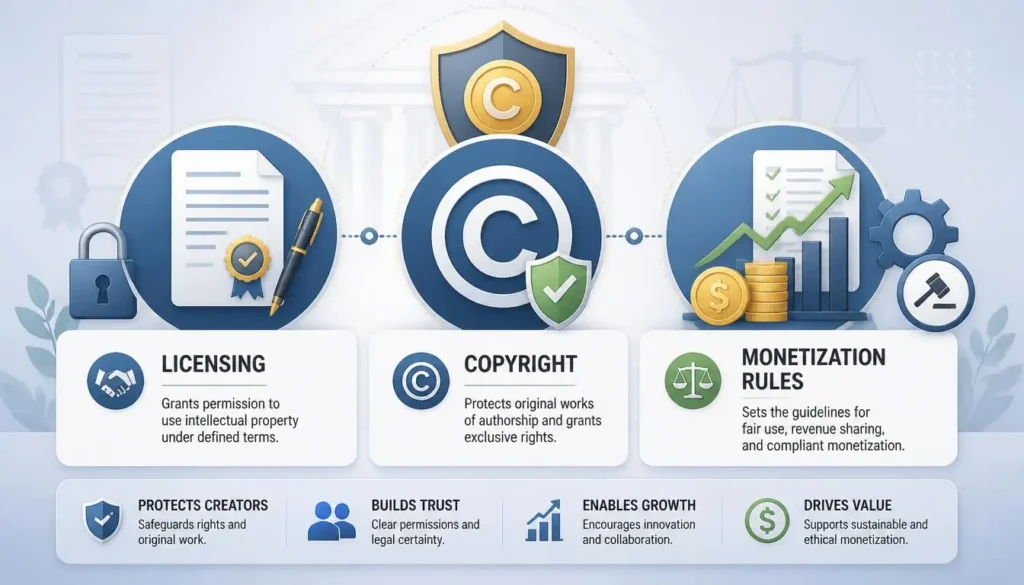
- TikTok In-App Sync: Sounds synced from TikTok are licensed for TikTok uploads only.
- Cross-Platform Posting: Exporting videos with copyrighted music to YouTube or Instagram often triggers copyright mutes.
- Commercial Safety: Use the Commercial Audio filter inside CapCut when editing brand promos or monetized content.
Frequently Asked Questions (FAQs)
Conclusion
Mastering this CapCut sound effects guide turns average video projects into high-retention content. Sound effects control viewer emotion, mark transitions, and emphasize key actions. Combine trend-focused audio selection with clean audio leveling. Use commercial license filtering to keep monetized channels protected. Test these sound design workflows in your next edit to boost viewer engagement.